Handheld PC gaming became popular because of devices like the Steam Deck, ROG Ally, and Legion Go. These devices can run real PC games in a portable form. However, carrying another large device is not always easy. Many people already carry a powerful Android phone every day. Because of that, Android phones are now becoming small gaming PCs.
For years, mobile gaming mostly meant simple games, online-only titles, or games filled with ads. Cloud gaming also became popular, but it depends heavily on a fast and stable internet connection. Now things are changing very quickly. New open-source software allows Android phones to run real Windows PC games directly on the device itself.
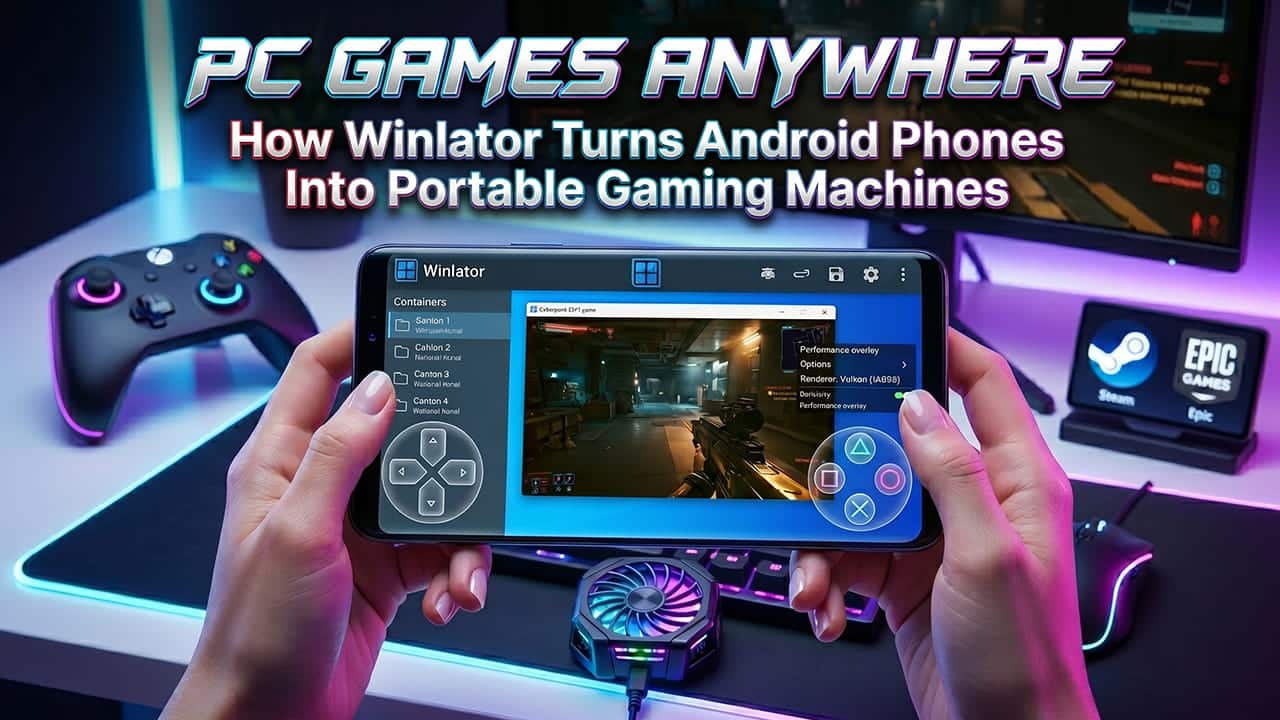
At the center of this change is Winlator. This emulator turns high-end Android phones into portable PC gaming systems. Instead of streaming games from another computer, Winlator runs many Windows games directly on the phone hardware.
How Winlator Actually Works
Winlator does not work like normal cloud gaming apps. It does not stream gameplay from servers far away. Instead, it runs the game locally on the Android device. That is a very difficult task because Windows games are built for x86 and x64 desktop processors from Intel and AMD, while Android phones use ARM processors.
To solve this problem, Winlator uses several software layers together.
The Main Software Behind Winlator
Wine
Wine stands for “Wine Is Not an Emulator.” It acts like a bridge between Windows software and Android. When a Windows game asks for memory, sound, graphics, or storage access, Wine translates those requests into something Android can understand.
This process allows many Windows applications to work without installing a full Windows operating system.
Box86 and Box64
Box86 and Box64 handle CPU instruction translation.
Box86 converts older 32-bit x86 instructions into ARM instructions. Box64 does the same for modern 64-bit applications. Instead of translating everything at once, they only recompile the code needed at that moment. Because of that, performance stays much better than a full virtual machine.
This method also reduces CPU load and saves system resources for gaming performance.
Graphics Translation and Vulkan Support
CPU translation alone is not enough. Graphics processing is another major challenge.
Most Windows PC games use Microsoft DirectX. Android devices mainly use Vulkan or OpenGL ES. These graphics systems are very different from each other.
Winlator solves this problem with translation layers like DXVK and VKD3D.
DXVK converts Direct3D 9, 10, and 11 commands into Vulkan commands. VKD3D handles Direct3D 12 games. Because Vulkan is very efficient, many games perform surprisingly well on strong Android hardware.
This translation happens in real time while the game runs.
Why Snapdragon Phones Perform Better
The biggest performance difference in Android PC emulation comes from the phone chipset.
Phones using Qualcomm Snapdragon processors usually perform much better than MediaTek or Exynos devices. The main reason is support for Turnip drivers.
Turnip Drivers
Turnip drivers are custom open-source Vulkan drivers made for Adreno GPUs found inside Snapdragon processors. These drivers reduce graphics overhead and improve Vulkan performance heavily.
Because of this, Snapdragon phones can run many Windows games with much higher frame rates.
Mali GPU Problems
Phones using MediaTek Dimensity or Samsung Exynos chips often use Mali GPUs. These devices usually depend on VirGL instead of Turnip.
VirGL works, but performance is much lower. Many games suffer from graphical bugs, low frame rates, or missing textures. Some games may not launch at all.
That is why most Winlator users strongly prefer Snapdragon devices.
Hardware Requirements for Winlator
Running PC games on a phone requires strong hardware. Older phones can still run lightweight games, but modern games need powerful components.
| Component | Minimum | Recommended |
|---|---|---|
| Processor | Snapdragon 845 / 855 | Snapdragon 8 Gen 2, Gen 3, or 8 Elite |
| RAM | 6 GB | 12 GB to 16 GB |
| Storage | 64 GB | 256 GB to 512 GB |
| Android Version | Android 8 | Android 14 or newer |
RAM is extremely important because the phone shares memory between Android, Winlator, the game, and virtual VRAM. Low memory often causes crashes or freezing.
Storage also matters a lot. Modern PC games are very large. Just a few games can easily fill over 100 GB.
Fast storage speeds also reduce loading times.
Setting Up Containers for Better Performance
Winlator uses isolated environments called Containers. Every container can have different settings for different games.
Correct setup makes a massive difference.
Create a Container
After installing Winlator, open the app and press the “+” icon. Create a new container and give it a clear name.
Many users create separate containers for older games and newer games.
Lower the Resolution
Reducing resolution greatly improves performance.
Instead of using high resolutions, many users choose 800×600 or 960×544. Lower resolutions reduce GPU stress and increase frame rates.
This is one of the biggest performance improvements available.
Choose the Correct Graphics Driver
Snapdragon phones should use:
- Turnip (Adreno)
- DXVK
MediaTek or Exynos devices usually work better with:
- VirGL
- WineD3D
Sometimes changing these settings fixes crashes or graphical problems.
Adjust Box86 and Box64 Presets
Inside the Advanced tab, Winlator allows preset changes.
Performance mode increases speed for well-optimized games. Compatibility mode improves stability for games that crash often.
Some games work perfectly in Performance mode, while others need Compatibility mode to launch correctly.
Running Steam Games on Android
Many users want access to their Steam library.
Simple DRM-free games from stores like GOG.com are usually easier to run. Users can copy game files directly into phone storage and launch the executable.
Steam itself is heavier.
Why Steam Uses So Much Performance
The Steam client contains browser processes and background services. These processes use RAM and CPU power before the game even starts.
To reduce this problem, many advanced users launch Steam with custom batch files. These scripts disable unnecessary features and force lightweight interface modes.
This leaves more system power available for gaming.
Community Forks and LSFG
Because Winlator is open-source, many developers create custom versions called forks.
Some forks include extra optimizations and additional gaming tools.
One important feature is Lossless Scaling Frame Generation, also called LSFG.
How LSFG Works
LSFG uses frame generation and image upscaling.
For example, a game may render internally at 480p and 30 FPS. LSFG can upscale the image to 720p and generate extra frames to make gameplay appear smoother.
This does not magically increase hardware power, but it can improve visual smoothness significantly.
Many users report better gameplay with LSFG enabled.
Controls and Gamepad Support
PC games normally expect keyboards, mice, or controllers.
Winlator includes customizable touch controls directly on the screen. Users can place virtual buttons, analog sticks, and keyboard keys anywhere they want.
However, physical controllers provide a much better experience.
Devices like the Razer Kishi and Backbone One connect through USB-C or Bluetooth. These controllers make the phone feel much closer to a real handheld console.
Many users completely disable touch controls after connecting a controller.
Heat and Thermal Throttling Problems
Heat is one of the biggest problems in Android PC emulation.
Unlike handheld gaming PCs, smartphones do not contain large cooling fans. They mostly rely on passive cooling through the phone body.
During long gaming sessions, temperatures rise very quickly.
When the phone becomes too hot, Android lowers CPU and GPU speeds automatically. This process is called thermal throttling.
Once throttling starts, frame rates can drop heavily.
External Cooling Solutions
Many Winlator users attach external cooling fans to the back of the phone.
These coolers reduce temperatures and help maintain stable performance for longer gaming sessions.
Cooling accessories cannot fully replace proper internal cooling systems, but they help a lot during heavy gaming.
Is Winlator a Real Steam Deck Alternative?
Winlator is not as simple as using a dedicated handheld gaming device. Games still need tweaking, testing, and optimization. Some titles work perfectly, while others crash or refuse to launch.
Still, the progress is impressive.
Modern Android phones are now powerful enough to run many real Windows games locally. Older AAA games, indie titles, RPGs, racing games, and strategy games can already work surprisingly well.
For users who enjoy testing hardware limits, changing settings, and improving performance, Winlator opens a completely new type of mobile gaming experience.
Instead of carrying another gaming device, many users can now turn the smartphone already sitting in their pocket into a portable PC gaming machine.