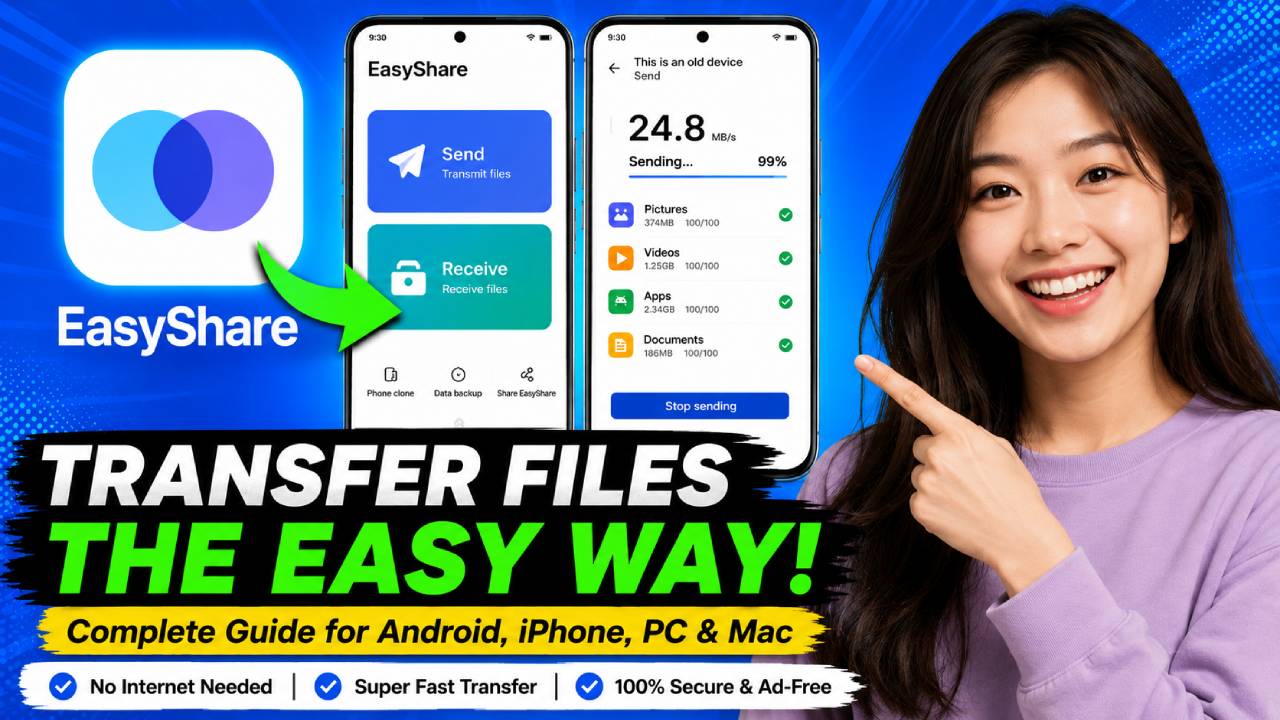
EasyShare is officially developed by vivo. It is a fast and reliable file-transfer tool with no ads.
EasyShare works fully offline. So, you do not need mobile data or an active internet connection. It supports cross-platform transfer speeds of up to 40 MB/s. That is over 200 times faster than standard Bluetooth.
You can use EasyShare for many file-transfer tasks. For example, you can move high-resolution videos between Android and iOS. You can also move your whole smartphone setup to a new phone. In addition, you can back up files to a PC.
This How To Use EasyShare guide explains every step, connection method, and troubleshooting case.
Technical Overview & Prerequisites
EasyShare uses peer-to-peer (P2P) Wi-Fi Direct protocols and local Access Point (AP) tethering. These technologies let devices exchange data securely.
EasyShare does not upload your files to external cloud servers. Instead, your data stays inside the encrypted local link. Therefore, your files remain private during the transfer.
| Feature / Metric | Specification |
|---|---|
| Developer | vivo (Pre-installed on Funtouch OS / OriginOS) |
| Supported OS | Android (5.0+), iOS (10.0+), Windows (10/11), macOS |
| Max Bandwidth | Up to 40 MB/s (Wi-Fi 5/6 hardware dependent) |
| Internet Requirement | None (Fully offline operation) |
| Ad Load | Zero (Ad-free UI) |
| File Size Limit | None |
Required System Permissions
Before starting a transfer, allow the needed permissions on every device.
Location Access: Android OS needs this permission to scan for nearby Wi-Fi Direct devices and local hotspot signals.
Storage / All Files Access: EasyShare needs this permission to index, read, and write files in local directories.
Wi-Fi and Bluetooth: These connections help EasyShare find nearby devices and create a connection automatically.
Local Network (iOS): iPhones and iPads need this permission to find non-Apple hardware over local connections.
How to Transfer Files Between Android Devices
You can move photos, documents, media, or installed apps between two Android devices in a few steps.
First, open EasyShare on both Android devices.
Establish the Connection
On Device A, which is the sender, tap Transmit File. Then select Send.
Next, go to Device B, which is the receiver. Tap Transmit File and select Receive.
Device A will now show a dynamic QR code. On Device B, open the built-in EasyShare scanner. Then scan the QR code shown on Device A.
Select File Types
After connecting the devices, open the file categories.
You can choose from Apps, Pictures, Videos, Music, or Files.
Next, check the radio boxes beside the items you want to transfer.
Initiate Transfer
Tap Send at the bottom of the screen.
Keep both devices within 5 meters of each other. Also, keep them close until the progress bar reaches 100%.
How to Transfer Files Between Android and iPhone (iOS)
iOS has sandbox restrictions. Therefore, transferring files between Android and iOS needs a temporary Wi-Fi access point connection.
First, open EasyShare on the Android device. Select Transmit File, and then tap Send.
Next, select Connect to iPhone on the Android device screen.
EasyShare will create a local Wi-Fi Hotspot SSID. It will also show a dynamic password and QR code.
On the iPhone, open Settings > Wi-Fi. Then join the SSID created by the Android device. Use the password shown on the Android screen.
Alternatively, open the iPhone camera. Then scan the QR code shown on the Android device. This method lets the iPhone join automatically.
After that, open the EasyShare app on the iPhone. The two devices will create a secure handshake.
Now, select the media or documents on either device. Then tap Send.
Received files will go directly to the iOS Photos library or the Files app folder.
How to Migrate Data Using “Phone Clone”
EasyShare includes a Phone Clone feature for moving data to a new smartphone.
This feature can move call logs, SMS text messages, contacts, media, and app configurations in one session.
First, open EasyShare on both the old phone and the new phone.
Next, select Phone Clone or Phone Switch from the bottom navigation bar.
Assign Device Roles
On your source device, tap Old Phone.
Then, on your target device, tap New Phone. Select the device operating system, which can be Android or iPhone.
A QR code will appear on the old phone. Use the camera on the new phone to scan that QR code.
Next, choose the data categories you want to move. For example, you can select Contacts, Messages, Call Logs, Photos, or Applications.
Tap Start Phone Clone to begin.
Keep both devices side-by-side during the process. Wait until the migration confirmation screen appears.
How to Connect EasyShare to a PC or Mac
EasyShare can also move large videos or documents from a smartphone to a computer.
You can do this without wires. You can also use a wired connection.
Method 1: Web-Based Transfer (No Installation Required)
First, connect your mobile phone and computer to the same Wi-Fi network.
Open EasyShare on your mobile device. Then open the side menu and select PC Web Transfer.
EasyShare will show an IP address URL on your phone. For example, it may look like http://192.168.x.x:8080.
Next, open Chrome, Edge, or Safari on your computer. Enter the IP address URL shown on your phone.
Accept the connection prompt that appears on your phone.
You can now download files directly through your PC browser. You can also upload desktop files directly to your phone.
Method 2: EasyShare PC Client
Download and install the official EasyShare PC software from de-es.vivo.com or the Microsoft Store.
Next, open the desktop client. Select either Wi-Fi Connection or USB Cable Connection.
For Wi-Fi, use the EasyShare mobile scanner. Then scan the QR code shown by the desktop app.
For USB, first enable USB Debugging in your Android device’s Developer Options.
Next, connect the phone with a USB cable. You can then use the connection for raw-speed file backup and restoration.
Troubleshooting Common EasyShare Issues
1. Connection Timeout or Disconnection During Transfer
Cause: Dynamic Wi-Fi switching may interrupt the connection. Battery saver modes may also stop background processes.
Fix: Turn off Smart Wi-Fi Switch or Auto-Switch to Mobile Data in your device settings.
Also, turn off Battery Saver or Low Power Mode on both devices. Keep these features off during large transfers.
2. Transferred Apps Fail to Install Automatically
Cause: Android OS permission rules can stop third-party tools from running background package installations.
Fix: Open your device’s built-in File Manager. Then go to Apps or APKs.
Find the transferred .apk packages and install them manually.
Also, make sure EasyShare has the Install Unknown Apps permission in your system settings.
3. QR Code Scanning Fails to Pair Devices
Cause: The screen may be too dark for the scanner. Local location services may also be turned off.
Fix: Increase the screen brightness on the device showing the QR code.
Also, make sure GPS / Location Services are turned ON on Android devices. Location permissions are required to allow local Wi-Fi radio broadcasts.
4. iPhone Cannot Find Android Hotspot
Cause: The problem may come from Wi-Fi bandwidth compatibility. Some older iPhone models do not support the 5GHz Wi-Fi band.
Fix: Open the EasyShare connection settings on the Android sender device.
Change the hotspot band setting from 5.0 GHz to 2.4 GHz. Then generate the QR code again.