Managing files on an Android device often means combining large documents, photos, videos, or folders into one file. A ZIP archive makes this much easier. It keeps everything together in a single file, which is easier to share through email, cloud storage, messaging apps, or file-sharing services.
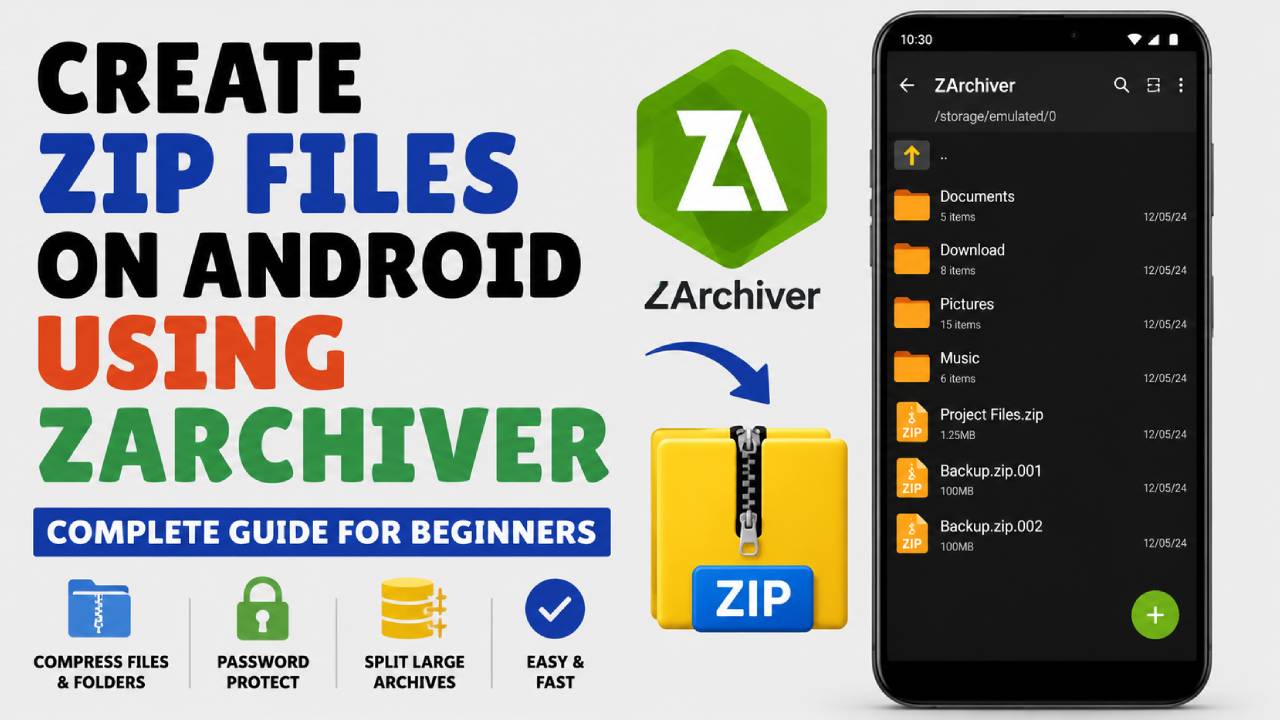
Android can open many ZIP files without extra apps. However, its built-in tools offer only basic features. If more control is needed, ZArchiver is a better choice. It lets users create ZIP files, choose different compression levels, protect archives with passwords, split large archives into smaller parts, and work with many archive formats.
This guide explains how to create a ZIP file on Android with the ZArchiver APK, change compression settings, use password protection, and fix common storage permission problems.
What Is ZArchiver and Why Use It?
ZArchiver is a small and fast file management and archive application made for Android devices. It supports many archive formats, including .zip, .7z, .tar, .rar, and .iso. It also allows users to edit some archives without extracting everything first.
Unlike many basic file managers, ZArchiver gives more control over how archives are created. This makes it useful for both simple file compression and advanced archive management.
Main Benefits of ZArchiver for Creating ZIP Files
Multiple Compression Levels
ZArchiver offers several compression levels. Users can choose Store for the fastest process or Ultra for the highest file compression. This makes it easier to balance speed and file size based on the situation.
Password Protection
Sensitive files can be protected with a password before creating the ZIP archive. ZArchiver supports both ZipCrypto and AES-256 encryption.
Split Large Archives
Very large ZIP files can be divided into smaller parts. For example, a large archive can be split into 100 MB or 1 GB pieces. This helps when sending files through email or uploading them to services with file size limits.
Works with Modern Android Versions
ZArchiver supports the Storage Access Framework (SAF). Because of this, it works properly with Android 11, Android 12, Android 13, and Android 14, even with the newer storage permission system.
Step 1: Install ZArchiver and Give Storage Permissions
Before creating ZIP files, ZArchiver needs permission to access the device storage.
- Download and install ZArchiver from the Google Play Store or another trusted APK source.
- Open the application.
- When permission requests appear, allow All files access on Android 11 and newer devices. Older Android versions may only request standard storage permission.
- If files are stored on a microSD card, allow access when Android opens the built-in file picker. Select the correct SD card folder and confirm the permission.
After these permissions are given, ZArchiver can read and create files in supported storage locations.
Step 2: Create a ZIP File from a Single File or Folder
Creating a ZIP archive from one file or one folder is simple and only takes a few steps.
Method A: Create a ZIP File with Default Settings
This method uses the default ZIP settings.
- Open ZArchiver.
- Browse to the folder that contains the file or folder to compress. For example:
/storage/emulated/0/Download
- Press and hold the file or folder.
- Select *Compress to .zip from the menu.
ZArchiver immediately creates a ZIP file in the same location using the default compression settings.
*Long Press Item → Tap “Compress to .zip” → ZIP File Created
Method B: Create a ZIP File with Custom Settings
This method is better when custom settings are needed.
- Open ZArchiver.
- Find the file or folder.
- Press and hold the item.
- Select Compress…
The archive settings window will open.
Configure the following options:
- Archive name: Enter the preferred file name. Make sure the name ends with .zip.
- Archive format: Select ZIP.
- Compression level: Choose the compression level that best matches the required speed and file size.
- Password (Optional): Enter a password if the archive needs protection.
After choosing the settings, tap OK.
ZArchiver will begin creating the ZIP archive.
Step 3: Compress Multiple Files into One ZIP Archive
Sometimes several files need to be placed inside one ZIP file. ZArchiver makes this easy through multi-selection.
Follow these steps:
- Open the folder that contains the required files.
- Tap the Multi-select button, which looks like a checklist. Some versions also allow selecting files by tapping their icons directly.
- Select every file and folder to include.
- Selected items will become highlighted.
- Tap the green checkmark to confirm the selection.
- Tap the Compress button.
- Choose the preferred archive settings.
- Tap OK.
ZArchiver creates one ZIP archive containing every selected file and folder.
ZArchiver Compression Level Guide
Choosing the right compression level helps improve speed or reduce file size, depending on the file type.
| Compression Level | Speed | File Size Reduction | Best For |
|---|---|---|---|
| Store | Instant | None (0%) | Already compressed files like MP3, MP4, JPG, and PNG |
| Fastest / Fast | Very Fast | Low (10–20%) | Fast transfers where speed is more important than size |
| Normal | Medium | Balanced | Documents, APK files, and mixed folders |
| Maximum / Ultra | Slow | Highest (30–60% or more) | Text files, source code, logs, and database backups |
Helpful Tip
Photos in JPG format and videos in MP4 format are already compressed. Because of this, using Ultra usually saves very little space while taking much longer to finish.
For these file types, Store or Fast is usually the better option. It saves processing time and uses less battery power.
Advanced Features
ZArchiver includes several advanced options for users who need more control over their archives.
Protect a ZIP File with a Password
Password protection keeps the archive safe from unauthorized access.
Follow these steps:
- Open the Compress… settings window.
- Enter a password in the Password field.
- Select an encryption method.
The available encryption options include:
ZipCrypto
- Compatible with many archive programs.
- Works well with older operating systems.
AES-256
- Provides stronger protection.
- Recommended for personal or sensitive files.
After selecting the encryption method, tap OK to create the protected ZIP file.
Create Split ZIP Archives
Large archives can be divided into smaller files.
This is useful when email services or cloud storage providers have upload size limits.
To split an archive:
- Open the Compress… settings.
- Find the Split into volumes option.
- Select one of the available sizes, such as:
- 10 MB
- 100 MB
- 2000 MB
- A custom size can also be entered manually.
- Tap OK.
ZArchiver creates multiple files with names similar to:
- filename.zip.001
- filename.zip.002
- filename.zip.003
All parts are needed later when extracting the archive.
Fix Common ZArchiver Problems
Sometimes ZArchiver may show an error while creating or accessing archives. The following solutions fix the most common problems.
1. “Access Denied” or Permission Error on Android 11 and Later
Cause
Android uses Scoped Storage on newer versions. Because of this, applications cannot freely access every folder unless permission has been granted.
Solution
- Open Android Settings.
- Go to Apps.
- Select ZArchiver.
- Open Permissions.
- Turn on Allow management of all files if the option is available.
- If access is still blocked, use the Storage Access Framework prompt inside ZArchiver and allow access to the required folder.
After the correct permissions are given, try creating the ZIP file again.
2. “Operation Completed with Errors”
Cause
This message usually appears when:
- The files are open in another application.
- The storage contains damaged sectors.
- The files are stored inside a read-only folder.
Solution
Close any applications that may still be using the files.
If needed, copy the files into a normal folder such as Download or Documents, and then create the archive again.
3. ZIP File Cannot Be Opened on Windows or macOS
Cause
This usually happens because:
- The archive name contains unsupported special characters.
- Older archive programs do not support the selected encryption method, especially AES-256.
Solution
Use simple letters, numbers, and basic symbols when naming the archive.
If the archive uses advanced encryption, open it with archive software that supports modern ZIP features instead of older built-in extraction tools.
Final Thoughts
ZArchiver makes it easy to create ZIP files on Android while giving much more control than the built-in file manager. Users can quickly compress a single file, combine multiple folders into one archive, choose different compression levels, protect files with passwords, and split very large archives into smaller parts.
With the correct storage permissions and the right compression settings, ZArchiver works smoothly on modern Android versions and handles everyday file compression tasks with ease.