Running mobile games and Android apps only on a phone is no longer necessary. A Windows PC gives more power, better graphics, and a larger screen. Because of that, Android emulators have become very popular for gaming, testing apps, and daily use.
However, not every emulator works the same way. Some focus on gaming speed, while others focus on app support or automation tools. A good emulator should offer stable frame rates, smooth controls, and low system usage without slowing down the computer.
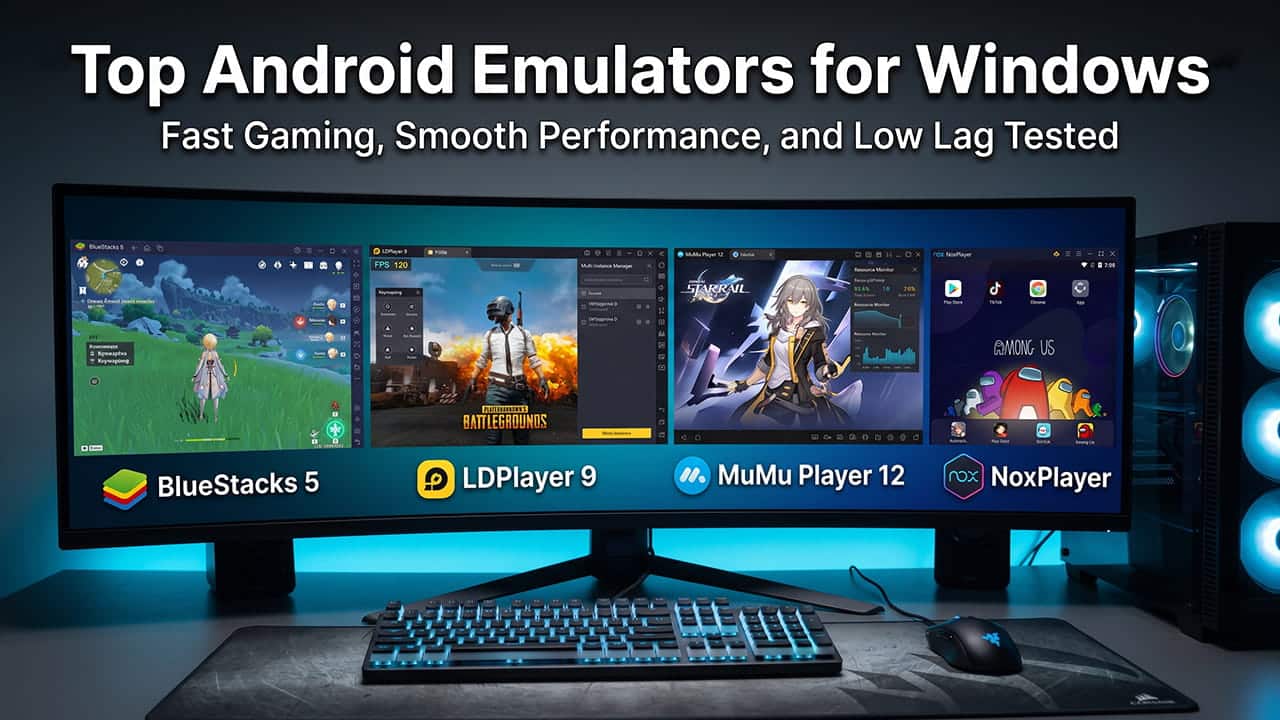
Instead of looking through outdated software, this guide focuses on the best Android emulators available right now. Each option below explains where the emulator performs best and which type of user should choose it.
Why Run Android Apps on a Windows PC?
Android emulators remove many limits found on smartphones. A desktop computer has stronger hardware, so apps and games can run more smoothly.
Here are the biggest advantages.
Better Hardware Performance
Phones often slow down during long gaming sessions because of heat. Battery drain also becomes a major problem. On a PC, these issues are far less noticeable. Desktop hardware can handle heavy tasks more easily.
Storage limits also become less stressful. Large games and apps can run without quickly filling up device space.
Better Controls
Touch controls are useful, but keyboards and gaming mice offer more accuracy. Most Android emulators allow users to map touch actions directly to keyboard keys or controllers.
This helps greatly in shooting games, racing games, and MOBAs where quick reactions matter.
Run Multiple Apps at Once
Many emulators support multi-instance features. This means several apps or games can run at the same time on one computer.
Some users run multiple game accounts together. Others use one instance for gaming while another handles background tasks.
The Top Android Emulators for Windows
1. LDPlayer 9: Best for Fast Performance and Low Lag
PROS: Very low input delay, lightweight, smooth performance on both low-end and high-end PCs.
CONS: Mostly designed for gaming users.
LDPlayer 9 focuses heavily on gaming performance. The software uses an optimized Android 9 system that keeps CPU and GPU usage under control.
One of the biggest strengths of LDPlayer 9 is its low input delay. Actions feel quick and responsive during gameplay. Fast shooting games and competitive multiplayer titles run very smoothly.
Another major advantage is resource efficiency. Compared to many other emulators, LDPlayer uses less RAM and fewer background processes. Because of that, older computers can still achieve stable performance.
The interface also feels clean and simple. There is less unnecessary software running in the background, which helps improve stability.
Users who need extra tools can still access advanced settings. These include macro recording, FPS adjustments, keyboard mapping, and performance tuning options.
For people who want a lightweight emulator without unnecessary extras, the official LDPlayer Latest Version Download remains one of the strongest choices available today.
2. BlueStacks 5: Best for Features and App Support
PROS: Large feature list, strong app compatibility, support for modern Android versions.
CONS: Uses more RAM and system resources.
BlueStacks is one of the oldest and most recognized Android emulators. BlueStacks 5 continues to offer a large number of features for both gaming and general Android use.
The emulator supports many apps very well. This includes mobile games, productivity apps, messaging apps, and streaming platforms.
BlueStacks also includes several useful tools. Users can switch between DirectX and OpenGL graphics modes depending on system performance. Eco Mode helps reduce resource usage during background tasks. Real-time translation tools are also available in supported apps.
The emulator works best on mid-range and high-end systems. Older computers may struggle because BlueStacks uses more RAM and GPU power than lighter alternatives.
Still, users who need wide app support and many extra features often choose BlueStacks because of its flexibility.
3. MuMu Player 12: Best for Very High Frame Rates
PROS: Extremely smooth visuals, supports very high refresh rates, and advanced graphics performance.
CONS: Less focused on non-gaming apps.
MuMu Player 12 was developed mainly for gamers who want the smoothest possible gameplay.
Its biggest feature is high refresh rate support. On compatible monitors, supported games can reach extremely high frame rates for smoother motion and faster visual response.
This makes a noticeable difference in action games where movement speed matters.
The emulator also keeps the interface simple and clean. Most settings focus directly on gaming performance instead of general Android features.
Because of that, MuMu Player may not be the best choice for users who mainly need productivity apps or broad Android support. However, for competitive gaming and visual smoothness, it performs extremely well.
High-end PCs benefit the most from this emulator since powerful hardware is needed to fully use ultra-high frame rates.
4. NoxPlayer: Best for Automation and Advanced Users
PROS: Excellent macro tools, flexible root settings, strong multi-instance controls.
CONS: Can use high CPU power during heavy multitasking.
NoxPlayer has remained popular for users who need advanced control features.
One major reason is its macro system. Users can record actions and replay them automatically. This helps greatly in repetitive tasks and automated workflows.
Root access can also be enabled easily. Advanced users often prefer this because it allows deeper control over Android applications and settings.
The multi-instance synchronization feature is another strong point. Actions performed in one emulator window can copy automatically across multiple windows.
This becomes very useful for users managing several accounts at once.
However, heavy multi-instance use can increase CPU usage significantly. Mid-range and high-end systems usually handle this better than low-end hardware.
Even with higher system usage, NoxPlayer remains one of the most flexible Android emulators available.
Quick Comparison Table
| Emulator | Main Purpose | Best Hardware Type | Android Version |
|---|---|---|---|
| LDPlayer 9 | Competitive gaming and low lag | Low-end to high-end PCs | Android 9 |
| BlueStacks 5 | General apps and gaming | Mid-range to high-end PCs | Android 11 / 13 Beta |
| MuMu Player 12 | Ultra-high FPS gaming | High-end PCs | Android 12 |
| NoxPlayer | Automation and multi-instance tasks | Mid-range to high-end PCs | Android 7 / 9 |
How to Reduce Emulator Lag
Even the best emulator can perform poorly if Windows settings are not configured correctly. These adjustments can improve speed and stability greatly.
Enable Hardware Virtualization
This is the most important setting for emulator performance.
Without virtualization enabled, the emulator must rely on slower software processing methods. Performance can drop heavily.
To enable virtualization:
- Restart the computer.
- Open the BIOS or UEFI menu using keys like DEL, F2, or F12.
- Find CPU settings.
- Enable Intel Virtualization Technology or AMD SVM Mode.
- Save settings and restart the computer.
After enabling this feature, emulator performance usually improves immediately.
Allocate Hardware Carefully
Giving all system resources to the emulator can actually reduce performance. Windows still needs RAM and CPU power for background operations.
Recommended settings include:
- Quad-core CPUs: Allocate only 2 CPU cores to the emulator.
- 16GB RAM systems: Allocate around 4GB RAM to the emulator.
Balanced resource allocation helps maintain smoother overall system stability.
Which One Should You Choose?
The best Android emulator depends mainly on hardware and usage style.
For users who want low lag, fast response times, lightweight performance, and smooth gameplay across many system types, the LDPlayer Latest Version Download remains one of the strongest overall choices.
BlueStacks 5 works very well for users needing wide app support and many built-in features. Meanwhile, MuMu Player 12 is ideal for gamers focused mainly on very high frame rates and visual smoothness.
For automation tasks, advanced scripts, and heavy multi-instance usage, NoxPlayer continues to be a strong option for experienced users.